
In 2025, we detected a monthly average of 5,000 infected files via the free tier of MetaDefender Cloud; roughly 167 per day and about 7 per hour. Obviously, the numbers do not distribute evenly. But it’s clear that attackers are relentless. So understanding how to secure Chrome downloads and maintaining secure Chrome and Edge downloads in a risky environment is crucial.
Per Kaspersky, 2025 saw a 59% increase in password stealer detections, a 51% rise in spyware detections, and a 6% increase in backdoor detections compared to 2024[1]. These trends reinforce the need to scan downloads before malware reaches device level, rather than relying solely on traditional defenses.
Given these numbers, do you think it is safe to assume trust and casually open PDFs, Office files, or ZIP archives? Should you scan file before download, or rely on built-in protections?
Not all file downloads carry embedded malware, but some of them will. To be safe, you don’t need to avoid downloads altogether. You do need, however, to be more mindful of your online behavior and consider using a file security browser extension. You need to understand the risks you’re exposed to and the steps you can take to avoid them.
Let’s start.
Why Browser Downloads Are High Risk
There is no point in the file downloading process where the user consciously decides that a file is either safe or infected. Trust is assumed precisely because people use files in their daily routines all the time. School, work, hobbies, they will all ask you to open a PDF, or an archived file.
This is why approaches like scan files before downloading Chrome environments and stronger Chrome download protection are becoming increasingly relevant. You see a document in your inbox from a sender whose name is familiar, and you think, “Probably just a work file; let’s see what’s that about.” In such moments, very few people think to intercept the file before it reaches device level, even though that step could prevent exposure.
Research studies back it up with hard data:
In 2025, KnowBe4 analyzed[2] 14.5 million users and found that 33.1% of employees are susceptible to phishing or social engineering. That’s roughly one in three people.
ResearchGate’s report showed[3] that +56% of respondents clicked a phishing link at some point, regardless of training.
Even knowing better doesn’t directly translate into doing better. And that's the point: once trust is assumed, the download becomes an entry point. Especially in the absence of mechanisms that automatically scan downloads for malware.
The risk factor might not be one bad decision, but a series of perfectly reasonable ones:
opening a document from your colleague
a recruiter reviewing a CV sent in PDF; someone downloading an unofficial installer to save time
a professor unpacking a semester’s worth of course materials from an archive.
In each case, using a malware scanner Chrome extension could help reduce exposure. Behind all these perfectly reasonable motives to open a familiar document, one can find:
Fake installers that look like everyday software updates, but deploy malware instead of a tool
Malicious documents can trigger system hijacking commands
Payloads hidden in .ZIP archives can bundle harmful scripts behind the compression
Spoofed files can lead to phishing attacks
Drive-by downloads can trigger just from visiting a compromised page
Weaponized file uploads, where seemingly safe files carry embedded threats
Without systems that automatically scan downloads for malware in place, these threats are particularly effective. They act when everything still looks legitimate. The file hasn’t executed anything visibly malicious yet, so your antivirus engines have nothing to flag. Yet.
Why Traditional Security Does Not Stop These Threats Early
The post download – before execution time frame is a blind spot for traditional security solutions. At this point, none of the signals associated with a cyberattack are strong enough to trigger an alert.
Technically, nothing bad has happened yet. You’ve merely downloaded a file.
Signature-based detection limitations
For signature-based detection (the method used by traditional antivirus engines) works perfectly fine, as long as it can rely on a rich database.
This database contains unique identifiers such as byte sequences, file hashes, or specific strings that pick out known malware from safe content, allowing AVs to detect, flag, and quarantine threats.
But here’s the problem: if a threat hasn’t been seen before, it has no signature. This makes signature-based detection inherently reactive.
As a result, it doesn’t work against zero-day and n-day exploits, nor against polymorphic malware that changes its structure to evade detection.
Zero-day exposure window shrank to day-of
The average time it takes for vulnerabilities to be exploited is now faster than traditional defenses can respond. A 2025 VulnCheck experiment [4] found that 28% of 884 identified vulnerabilities were exploited on or even before the day they were publicly disclosed, up from 23% in 2024.
As the window continues to shrink, the prevention-first approach to file security becomes critical; files need to be cleared before they can be weaponized.
Protection happens after download
Modern antivirus engines are powerful; but used on their own, they intervene too late in the attack chain.
If a file is crafted to exploit a vulnerability in a common application, such as a document reader or image viewer, malicious code can execute as soon as the file is opened. In some cases, execution can even occur during the file handling process itself.
Opening an infected file is more than enough to trigger an attack. And yet traditional security focuses on post-download analysis. These solutions overlook the true entry point: the moment the file crosses the perimeter. That’s when attackers make their move.
How to Stop Threats Before They Reach the Device
The more effective approach is intercepting files right at the point of download, and running it through additional security checks, other than detection-based tools. However, since multiple security checks tend to reduce productivity, additional steps are often skipped in practice, especially under tight deadlines.
This is why many users look for ways on how to check file for virus before downloading without adding friction to their workflow.
But what if you didn’t need to introduce any extra steps in your workflows, and files could be intercepted or scanned as they’re being downloaded? Tools that can scan download links before clicking make this possible by shifting security earlier in the process.
What Is Browser-Level Inspection
In cybersecurity, browser-level inspection refers to analyzing files at the point of download. It's done through a web browser solution, and the scanning occurs before files reach the local system, supporting zero-day protection browser downloads strategies that go beyond traditional detection.
Advanced, prevention-based browser inspection extensions will scan content for malware and other threats, sanitize potentially dangerous elements, and optionally execute deeper analysis in isolated environments.
Thus, this pre-download control point acts as an extra layer of protection operating within the browser to reduce exposure to malicious files without requiring full system-level intervention.
OPSWAT File Security for Browser provides the prevention-first file security layer needed to scan files pre-download, with powerful technologies but little impact on your systems. It’s an easy-to-use tool that examines every download using MetaDefender Cloud to identify threats in files and applications before you download them, offering a private alternative to VirusTotal for users concerned with data exposure.
How OPSWAT File Security for Browser Works Step by Step
OPSWAT's file security for browser solution is designed to make downloads safer without disrupting your workflow. To add and use the extension, you simply need to follow a few simple steps.
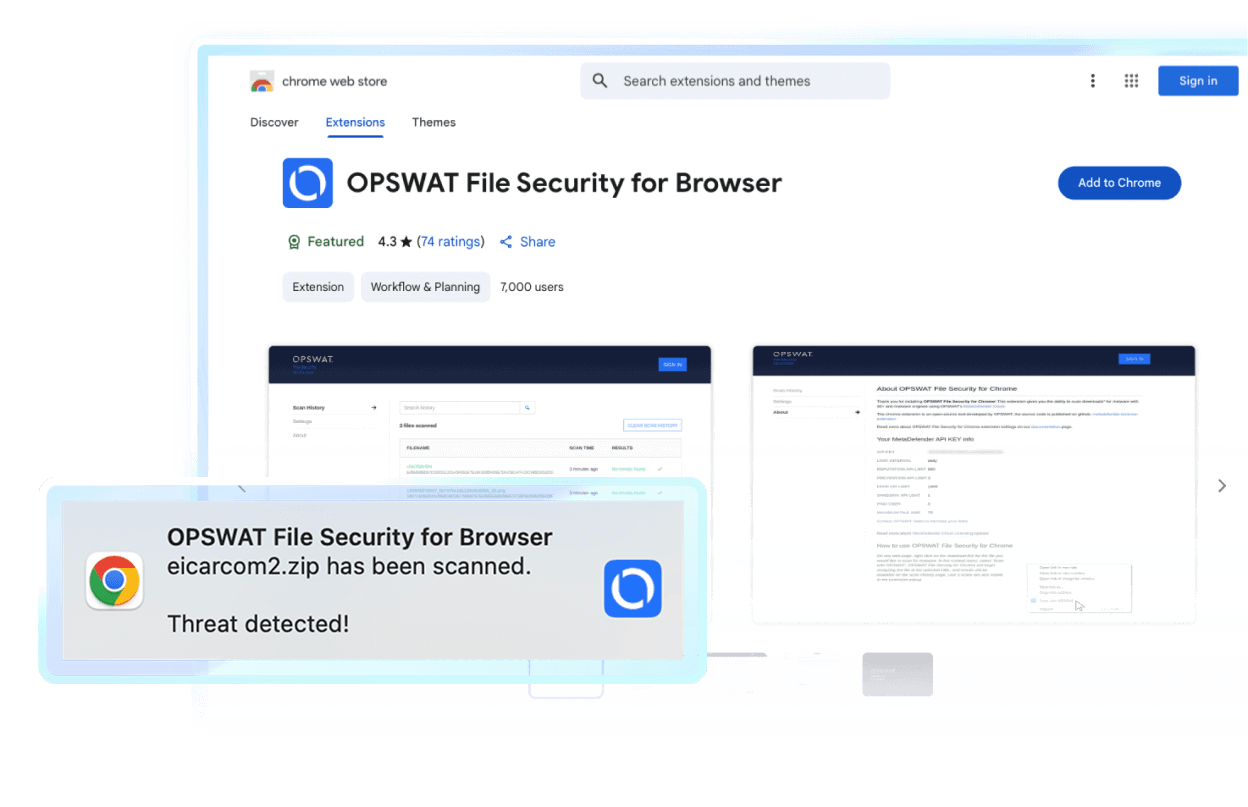
Install the extension: If you use Chrome, you can find the MetaDefender Chrome extension in the Chrome Store
If the “Scan downloads” option is active, all files are scanned automatically. If not, you can perform manual checks, by right-clicking any download link and selecting “Scan with OPSWAT.”
Once download activity is detected, the file is intercepted before reaching the device
File is submitted to MetaDefender Cloud where multi-layered analysis is performed as part of the MetaDefender Cloud file scan. If enabled, the file also runs through Deep CDR and Sandbox Analysis, supporting advanced CDR file sanitization browser capabilities.
A verdict returned: Allowed or Blocked
If safe, the site/file loads or the download proceeds; if not, the user is warned and access can be blocked or a sanitized file offered.
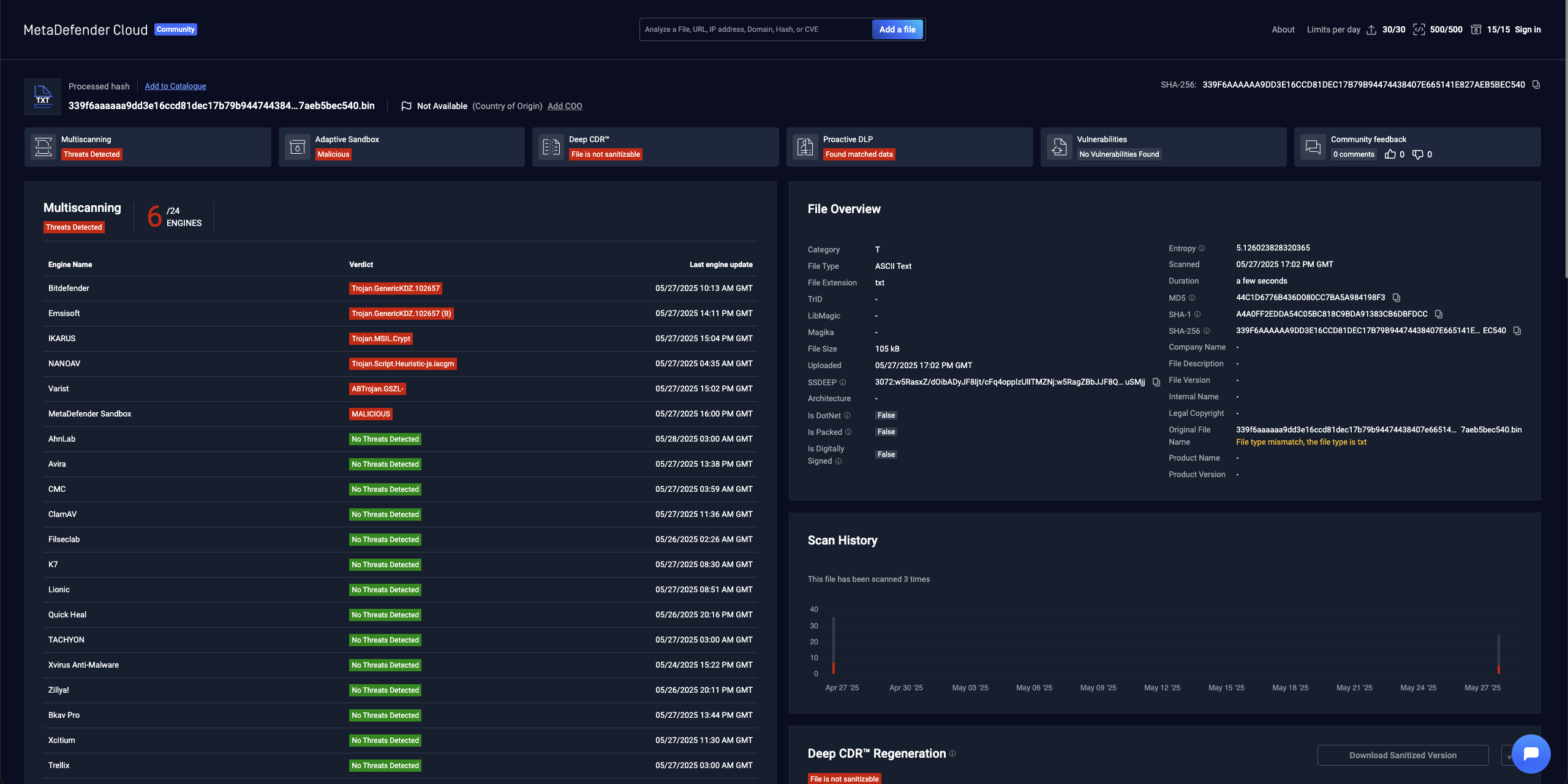
You can see a history of all downloads, along with the scan results for each, on the Scan History page. All the files scanned by the extension can be accessed here. To access it click on the OPSWAT File Security extension icon on the top right of your browser and click "View Scan History".
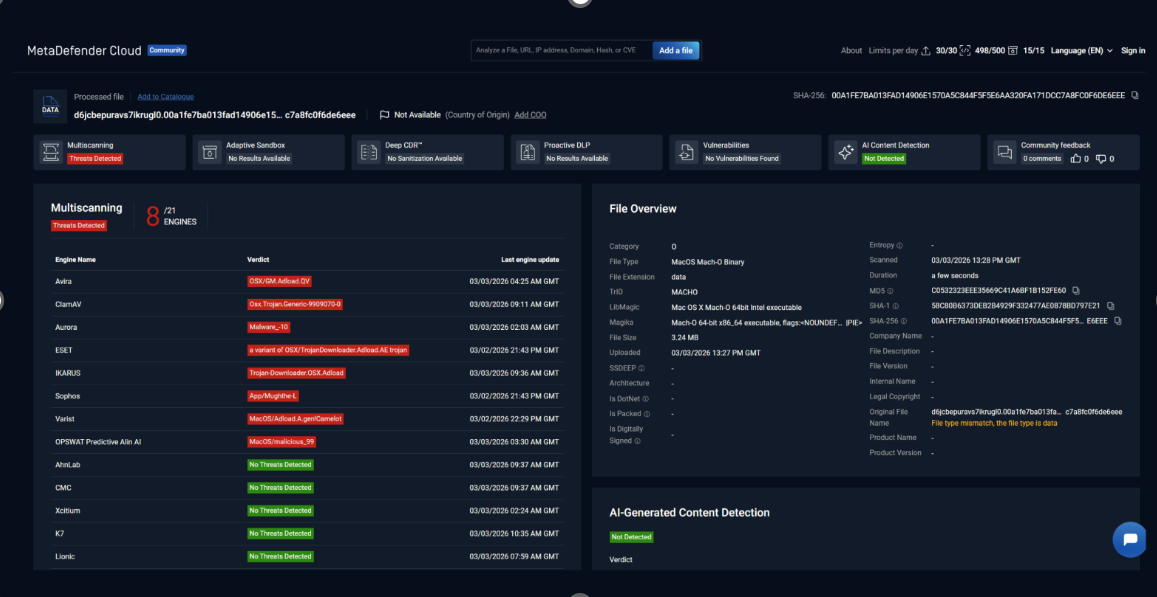
The extension comes with additional features:
Scan downloads: automatically scan every file you download using a multiscanning browser extension approach.
Sanitize downloads: download the sanitized version of the file (if applicable)
Reputation Look-up: check the reputation before Multiscanning when downloading a file.
Share scan results: anonymously share scan results.
Show Browser notifications: be notified when a scan is complete.
Open status bar while scanning: see progress on your scans.
Save clean files: download clean files on the computer after they are scanned.
Enable safe URL: browse the web safely and get an alert if accessing harmful websites.
Skip scanning files larger than: enable this option to save time and resources.
Scanning using Custom MetaDefender Cloud API Key: input your own API key
On-premise scanning using MetaDefender Core: easily link your extension to MetaDefender Core for more advanced scanning features.
Allowlist Domains: you can add trusted domains to the allowlist to prevent scanning of files from those sources.
Enterprise deployment options (GPO, Intune, Google Admin Console, MetaDefender Core)
All in all, the extension combines Multiscanning, Deep CDR™ Technology, and the Adaptive Sandbox, as a way to handle advanced attacks and identify threats which single-engine solutions simply aren’t prepared to. Get it for free and enjoy safe downloads:
For Google Chrome (and Edge): find it here
How MetaDefender Cloud Powers the Analysis
OPSWAT File Security for Browser is a lightweight browser extension which works based on MetaDefender Cloud’s technologies. Purpose-built for fast and dynamic environments, MetaDefender Cloud incorporates all layers of a strong, prevention-based file security approach.
Multiscanning catches threats that single-engine AVs miss
Metascan™ Multiscanning scans files, URLs, Hashes, and IPs, with 20+ anti-malware engines, achieving 99.9% detection rates.
Since it uses multiple databases, coming from leading anti-malware engines, multiscanning has a higher probability of catching embedded scripts inside documents or trojanized installers.
Weaponized archives, which often hide malware inside multiple layers of compressed content, are recursively unpacked, and every extracted file is then routed through multiple engines.
Multiscanning follows a simple principle: if one engine misses the threat, one of the others can catch it. However, even if a +99% detection rate is almost perfect, users shouldn’t take any risks. Which is why multiscanning is complemented by the Deep CDR™ technology.
Deep CDR completely removes potential risks
Deep CDR deconstructs files, removes any potentially risky elements, then rebuilds a safe file, without affecting file usability. It’s a lightweight, background process that is imperceptible to the user.
Deep CDR doesn’t scan files; it removes anything suspicious, thus neutralizing evasive or polymorphic malware, as well as zero-day threats. It also works against hidden or obfuscated payloads; it doesn’t matter how effective malware is at hiding itself, if it’s simply removed before having a chance to execute. Deep CDR is especially useful for productivity files like documents or spreadsheets.
URL, domain reputation, and hash-based lookups for safe browsing
Compromised or spoofed websites can trigger a drive-by attack and automatically download malware on your computer. OPSWAT File Security for Browser mitigates these threats.
When the user opens a URL using the safe URL redirect feature, the given address is scanned before the user reaches it. If the address is clean, the user reaches the destination seamlessly without any interruptions. If the address is marked as infected by at least one of the engines, a warning page is displayed, and the user decides to stop or continue even if it's an infected site.
MetaDefender Aether™ (Adaptive Sandbox) for zero-days in executables
For files requiring a more careful analysis, the Adaptive Sandbox technology inspects suspicious file behavior in a safe and controlled environment.
Why This Approach Matters
If given the choice, anyone would prefer to avoid the bad thing altogether, rather than dealing with the fallout. Which is why prevention is always better than the cure.
The principle applies to cybersecurity as well. But there should be no half-measures when it comes to true protection.
OPSWAT File Security for Browser doesn’t leave anything to chance. Multiscanning runs files through 20+ engines, achieving +99% detection rates. For that 0.1%, Deep CDR sanitizes files and delivers a clean, disarmed file. URL and reputation checks warn users if websites aren’t trustworthy.
This is precisely what “strong” or “modern” file security means: becoming proactive, not leaving anything to chance, adopting the prevention-first mindset which allows you to stay one step ahead of bad actors.
Final: Add to Chrome
FAQ
Does Chrome scan downloads automatically?
While Google Chrome can scan downloads for malicious content with the Google Safe Browsing technology, their features aren’t useful against Zero-Days or other unknown malware.
OPSWAT’s File Security for Browser adds an extra layer for download security, with multiscanning, Deep CDR, and Sandboxing technologies. With it, users can scan 30 downloads daily and perform 500 URL checkups.
How do I scan a file before downloading it?
Once you add the extension, you can enable the “Scan downloads” option; with it, all files are scanned automatically.
What is the best antivirus extension for Chrome?
Thanks to its use of multiscanning, Deep CDR, and Sandboxing, OPSWAT File Security for Browser stands out as the more potent solution. Malwarebytes Browser Guard focuses more on everyday protection like blocking ads and trackers, while the VirusTotal extension is primarily an analysis tool for examining suspicious indicators rather than providing active protection.
Is there a malware scanner for Edge?
Yes; OPSWAT File Security for Browser is also available on Edge and it uses the same multi-layered approach as the Chrome version. With it, Edge downloads are protected with multiscanning, Deep CDR, and Sandboxing technologies.
How does MetaDefender Cloud protect downloads?
Once the download starts, the file is intercepted and sent to MetaDefender Cloud before reaching the device. There it goes through multiscanning, Deep CDR, and Sandbox Analysis. If malware is identified, the file is blocked.
What is Content Disarm and Reconstruction (CDR)?
Deep CDR is a prevention-based technology which deconstructs files, removes risky elements (like macros), then returns a safe version to the user. Since Deep CDR doesn’t scan, it’s useful against unknown malware which might infect productivity-based files like documents or PDFs.
Can Virus Total block downloads?
VirusTotal can scan downloads for malicious content, but doesn’t automatically block them. Users can check the verdict and decide whether or not they want to proceed with the download.
How do I protect my browser from infected downloads?
Ensure you aren’t downloading files without scanning them. However, with the threat landscape being increasingly adaptable to cybersecurity strategies, the best approach is using a prevention-first, multi-layered security architecture. OPSWAT File Security for Browser uses 20+ anti-malware engines to scan files for malware. It adds the Deep CDR layer to strip malicious content from files, and performs sandbox analysis for files which require deeper analysis.
What is multiscanning for files?
Multiscanning means running your file through multiple anti-malware engines. Since it relies on multiple signatures and uses the strong points of different engines, multiscanning achieves higher detection than single-engine scans.
Is it safe to download files from Chrome?
No. You should always scan your downloads, even if you trust the source.
Sources